
How to Set Up a Network for 10 Computers
Learn how to set up a network for 10 computers using routers, network switches, Cat6 cables and IP configuration. Explore office LAN setup, security and connectivity tips.
By virnobyte team · · 14 min read

How to Set Up a Network for 10 Computers: Complete Office LAN Setup Guide
Setting up a network for 10 computers is an important step for small offices, startups, shops and growing businesses. A properly configured network allows employees to share files, access printers, use business applications and connect to the internet through a common infrastructure.
For a 10-computer office, a wired LAN network with a suitable router, Gigabit network switch and Cat6 Ethernet cables is a practical solution. You can also add Wi-Fi for laptops, smartphones and visitors.
This guide explains the equipment required, network diagram, IP address configuration, Windows file sharing, network security, installation process and troubleshooting.
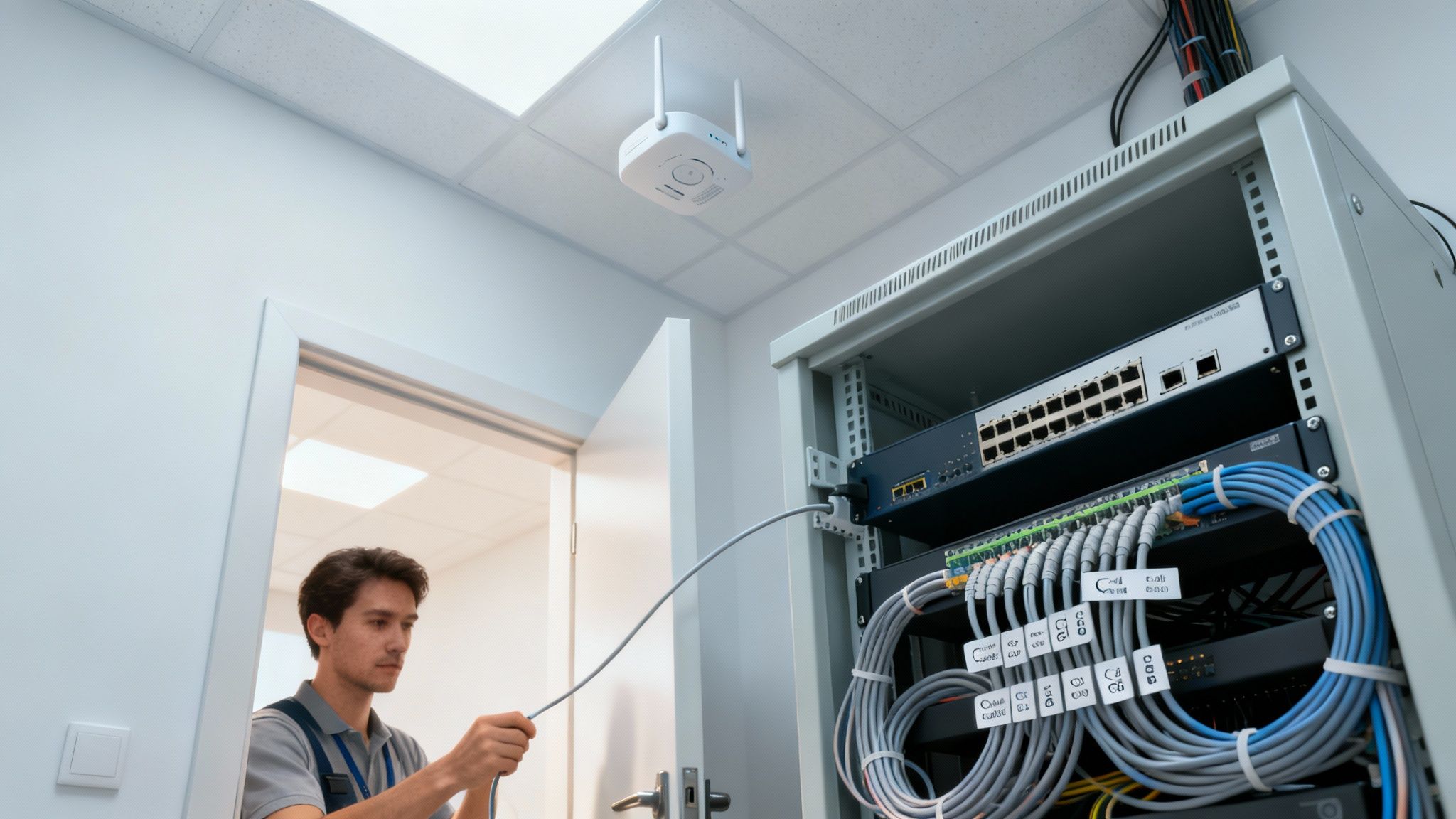
1. Why Does an Office With 10 Computers Need a Network?
When 10 computers operate independently, employees may face difficulties sharing documents, printers and other business resources. A LAN connects these devices so they can communicate through a common network.
Benefits include:
- Shared internet: All 10 computers can use a common internet connection.
- File sharing: Authorised employees can access shared folders and business documents.
- Printer sharing: Multiple computers can use a network printer.
- Centralised storage: A NAS or file server can store shared business data.
- Business applications: Employees can access compatible accounting, billing and inventory applications.
- Easy management: Network equipment and connected devices can be managed in an organised way.
- Future expansion: Additional computers and devices can be connected when the network has sufficient capacity.
2. What Equipment Is Required to Connect 10 Computers?
Before installing the network, prepare a list of the equipment required. The following is a practical starting point for a basic wired office LAN.
| Equipment | Suggested Quantity | Purpose |
|---|---|---|
| Internet router or firewall | 1 | Connects the office LAN to the internet and manages network traffic. |
| Gigabit Ethernet switch | 1 × 16-port switch | Connects 10 computers and other wired devices. |
| Cat6 Ethernet cables | As required | Connects computers and equipment to the switch. |
| RJ45 connectors / keystone jacks | As required | Provides proper cable termination. |
| Network rack or cabinet | 1, if needed | Organises network equipment and cabling. |
| UPS | 1, as required | Provides backup power to network equipment. |
| Network printer | Optional | Allows authorised users to share printing facilities. |
| NAS or file server | Optional | Provides centralised file storage and sharing. |
| Wireless access point | Optional | Provides Wi-Fi for laptops and mobile devices. |
3. Choose the Right Network Switch
A network switch connects multiple computers and devices within a Local Area Network (LAN). For 10 computers, a Gigabit Ethernet switch is generally suitable for a typical small office.
Common switch options include:
Unmanaged Switch
An unmanaged switch is simple to install and generally requires little configuration. It can be suitable for a small office that only needs basic wired connectivity.
Managed Switch
A managed switch offers additional features such as VLAN configuration, port monitoring, traffic management and network diagnostics. It is useful when the business needs greater control over its network.
PoE Switch
A Power over Ethernet (PoE) switch supplies power and data to compatible devices through Ethernet cables. It can be useful if the office also has PoE wireless access points or IP CCTV cameras.
4. Network Diagram for 10 Computers
The following diagram shows a simple network arrangement for a 10-computer office.
This is a conceptual layout. In an actual installation, each computer has its own Ethernet cable connected to a switch port. The router connects to the switch through an uplink. The printer, NAS and access point use additional switch ports.
5. Step-by-Step Guide to Set Up a Network for 10 Computers
Step 1: Plan the Office Network
Before purchasing equipment, identify the physical locations of all 10 computers and any additional network devices.
Prepare the following details:
- Number of desktop computers and laptops.
- Location of each workstation.
- Location of the internet connection.
- Position of the router and switch.
- Required network cable lengths.
- Printer and file-sharing requirements.
- Wi-Fi coverage requirements.
Choose a secure and ventilated location for the main network equipment. A central location can help keep cable runs organised.
Step 2: Install the Router
Connect the internet service provider's modem or ONT to the WAN port of the router, where applicable.
Basic installation steps:
- Connect the ISP connection to the router's WAN port.
- Power on the router.
- Access the router's administration interface using the manufacturer's instructions.
- Configure the ISP connection settings.
- Change the default administrator password.
- Configure DHCP and the private IP address range.
- Enable suitable firewall and security settings.
Step 3: Install the 16-Port Network Switch
Connect one LAN port of the router to an uplink port on the switch. Then connect the Ethernet cables from each workstation to separate switch ports.
For a basic setup, you can use an unmanaged Gigabit switch. If the office requires VLANs, monitoring or advanced network controls, consider a managed switch.
Step 4: Install Cat6 Ethernet Cables
Run Cat6 Ethernet cables from the network switch to each of the 10 computers.
Follow these installation practices:
- Use good-quality copper Ethernet cables suitable for the installation.
- Measure the cable route before cutting and terminating.
- Use cable trays, conduits or trunking where appropriate.
- Avoid crushing cables or bending them too sharply.
- Keep data cables appropriately separated from electrical wiring.
- Label both ends of every cable.
- Test every completed cable run.
For standard Ethernet channel installations, the total channel length is generally limited to 100 metres, including the permanent link and patch cords. Longer distances may require fibre or other suitable network design solutions.

Step 5: Configure IP Addresses
Each computer needs a valid IP address to communicate on the network. For a basic 10-computer office, the router can assign addresses automatically using DHCP.
Example network configuration:
| Network Setting | Example Value |
|---|---|
| Network address | 192.168.10.0/24 |
| Subnet mask | 255.255.255.0 |
| Router / Gateway | 192.168.10.1 |
| DHCP range | 192.168.10.100 – 192.168.10.150 |
| Printer reservation | 192.168.10.20 |
| NAS reservation | 192.168.10.30 |
| DNS | Router or approved DNS resolver |
These values are examples, not mandatory settings. Confirm that the proposed address range does not overlap with an existing office network, VPN or another connected network.
For a simple office, DHCP is generally easier to manage than manually assigning an IP address to every computer. DHCP reservations can be used for devices that need consistent addresses, such as printers and NAS systems.
Step 6: Connect All 10 Computers
After installing the switch and Ethernet cables, connect each computer to its assigned network point.
On Windows computers:
- Open Settings.
- Select Network & Internet.
- Open Ethernet.
- Check that the connection is active.
- Confirm that the computer has received a valid IP address.
To check the IP configuration, open Command Prompt and enter:
ipconfigTo test communication with the router, enter:
ping 192.168.10.1Use the actual router address configured for your network. A successful response generally indicates that the computer can communicate with the gateway.
Step 7: Enable File and Printer Sharing
If employees need to share files and printers, configure sharing on the relevant Windows computers or a central server/NAS device.
For Windows 11, on a trusted office network:
- Open Settings.
- Select Network & Internet.
- Open the connected Ethernet or Wi-Fi network properties.
- Set the network profile to Private if appropriate for the trusted office LAN.
- Open Advanced network settings and select Advanced sharing settings.
- Enable network discovery and file and printer sharing under the Private network profile when required.
- Share only the specific folders or printers employees need.
- Set appropriate user permissions and keep password-protected sharing enabled.
For more details, refer to Microsoft's official guide: File sharing over a network in Windows.
Step 8: Connect a Shared Printer
If your office uses one network printer, connect it to the switch using Ethernet or configure its Wi-Fi connection.
Then:
- Configure the printer's network settings.
- Assign a DHCP reservation or suitable static IP address.
- Install the correct printer driver on the computers.
- Add the printer using its network name or IP address.
- Print a test page from multiple computers.
Step 9: Configure Wi-Fi if Required
If employees use laptops and mobile devices, add a wireless access point to the network.
Use a strong Wi-Fi password, modern security supported by the equipment and a separate guest network for visitors. Avoid placing the access point where walls, metal objects or other obstructions significantly reduce coverage.
Step 10: Test the Complete Network
Before starting daily office operations, check:
- All 10 computers have network connectivity.
- Every computer can reach the router.
- Internet access works as expected.
- Shared printers are accessible to authorised users.
- Shared folders work with the correct permissions.
- NAS or server access works if installed.
- Wi-Fi coverage is sufficient in required areas.
- Network cables and switch ports are labelled.
6. Wired Network vs Wi-Fi for 10 Computers
For a small office with 10 desktop computers, wired Ethernet is often a practical choice for fixed workstations. Wi-Fi can be added for laptops, smartphones and visitors.
| Feature | Wired LAN | Wi-Fi |
|---|---|---|
| Connection | Ethernet cable | Wireless radio connection |
| Reliability | Generally predictable for fixed devices | Depends on signal and interference |
| Mobility | Limited by cable location | Allows movement within coverage |
| Installation | Requires cable routes and network points | Requires suitable access point placement |
| Best use | Desktops, servers and printers | Laptops, smartphones and guest devices |
7. Network Security for a 10-Computer Office
Even a small office network needs security. Connected computers may contain customer details, financial records, business documents and confidential information.
Follow these best practices:
- Change default router and switch administrator credentials.
- Use strong and unique passwords.
- Keep Windows and network device firmware updated.
- Use a firewall to control network traffic.
- Keep Windows Firewall enabled unless another suitable firewall provides the required protection.
- Separate guest Wi-Fi from internal business devices.
- Restrict shared folder permissions.
- Use antivirus or endpoint protection on office computers.
- Back up important business data regularly.
- Disable unused services and remote administration features.
- Use VPN access for authorised remote users when required.
For additional guidance, read CISA Cybersecurity Resources.
8. Common Network Problems and Solutions
| Problem | Possible Cause | Suggested Solution |
|---|---|---|
| One computer cannot connect | Faulty cable, disabled network adapter or switch port issue | Check cable, adapter status and switch port. |
| All computers have no internet | ISP outage, router problem or WAN configuration issue | Check the ISP connection, ONT and router. |
| Computers cannot share files | Sharing settings, firewall or permissions | Check Private network profile and authorised sharing settings. |
| Slow file transfer | Network congestion, faulty cabling or slow storage | Check link speed, cable quality and server performance. |
| Printer not detected | Printer IP address or network configuration issue | Check the printer's network connection and IP settings. |
| Duplicate IP address | Overlapping static and DHCP assignments | Review the DHCP range and address reservations. |
| Frequent network disconnection | Unstable power, damaged cables or faulty equipment | Inspect cabling, power and network hardware. |
9. How Much Does It Cost to Set Up a Network for 10 Computers?
The cost of setting up a network for 10 computers depends on equipment quality, cable length, office layout, installation work and additional requirements.
Major cost factors include:
- Router and firewall selection.
- 16-port Gigabit network switch.
- Cat6 Ethernet cable and termination accessories.
- Network outlets and patch panels.
- Network rack and cable management.
- UPS and backup power.
- Additional Wi-Fi access points.
- Network printer or NAS storage, if required.
- Installation, configuration and testing.
For an accurate quotation, prepare a floor plan, workstation count and approximate cable routes. A site inspection helps determine the actual installation requirements.
10. Why Choose Professional Network Installation?
Incorrect IP configuration, poor cable termination, weak security settings and unorganised wiring can create recurring network issues. Professional installation helps create a stable, secure and manageable network.
Professional support may include:
- Office network planning and site survey.
- Router and switch installation.
- Cat6 cabling and cable management.
- IP address and DHCP configuration.
- File and printer sharing setup.
- Wi-Fi installation and configuration.
- Network testing and troubleshooting.
- Network documentation and maintenance.
11. Network Installation Services by Virnobyte Private Limited
Virnobyte Private Limited provides computer networking and IT infrastructure solutions for small offices, shops, commercial premises and businesses.
Our networking services can include:
- LAN networking setup for offices.
- Network installation for 5, 10, 20 or more computers.
- Router and firewall configuration.
- Network switch installation.
- Cat5e, Cat6 and structured cabling.
- Network rack and patch panel installation.
- Office Wi-Fi setup.
- Printer and shared resource connectivity.
- Network troubleshooting and repair.
- Networking AMC and IT support.
Our Service Coverage
Virnobyte has its head office in Pune, Maharashtra, and provides services across Maharashtra. We also have a strong presence in Karnataka and Goa, and serve customers across Pan India.
On-site installation and support depend on the project location, scope and feasibility. Remote assistance and other service arrangements can be discussed according to customer requirements.
Need a Network Setup for 10 Computers?
Planning a new office network or upgrading your existing computer infrastructure? Contact Virnobyte Private Limited for LAN installation, router configuration, switch setup, structured cabling and IT support.
Virnobyte Private Limited
Technology • Innovation • Trust
Head Office:
Sadichha Complex, Sawtamali Temple Road, Jadhavwadi, Chikhali, Pune – 411062, Maharashtra, India
Phone: 8669883332
Email: info@virnobyte.com
Website: www.virnobyte.com
Frequently Asked Questions (FAQs)
1. Which switch is suitable for 10 computers?
A 16-port Gigabit Ethernet switch is a practical starting point for 10 computers. It provides additional ports for a printer, NAS or access point. Choose a managed or PoE model if your requirements justify those features.
2. Can 10 computers use one internet connection?
Yes. A suitable router can share one internet connection with all 10 computers. Actual internet performance depends on the ISP plan, router capability and simultaneous usage.
3. Which cable is best for connecting 10 computers?
Cat6 Ethernet cable is a common choice for a new small office network. Select suitable cable quality and ensure correct termination and testing.
4. Do all 10 computers need separate IP addresses?
Yes. Each device on the same IP network needs a unique IP address. DHCP can assign addresses automatically, reducing manual configuration work.
5. Can all 10 computers share one printer?
Yes. A network-enabled printer can connect to the switch or Wi-Fi network. Authorised computers can then access it using the printer's network address or shared printer configuration.
6. Can I share files between all 10 computers?
Yes. Files can be shared through Windows file sharing, a central NAS device or a file server. Use individual accounts and suitable permissions to protect business data.
7. Is a server required for 10 computers?
No. A basic LAN can work without a dedicated server. However, a NAS or file server may be useful if employees need centralised storage, shared folders or business applications.
8. Does Virnobyte provide network installation for small offices?
Virnobyte provides computer networking and IT infrastructure services for businesses. Contact us to discuss your device count, office layout and installation requirements.
Useful External Resources
- Microsoft Learn: Set Up Your Small Business Network – Guidance on wired, wireless and hybrid network setup.
- Microsoft Support: File Sharing Over a Network in Windows – Instructions for sharing files and folders between Windows computers.
- Cisco: How to Set Up a Small Business Network – Understand routers, switches and business network planning.
- CISA Cybersecurity Resources – Guidance for securing business networks and devices.
Disclaimer: The network configuration and IP addresses in this article are illustrative examples. Actual equipment selection and network design should be based on the office layout, device requirements, applicable standards and security needs.