
Office Network Installation: Complete Guide
Learn about office network installation, including LAN setup, Wi-Fi configuration, routers, switches, structured cabling, network security and reliable IT infrastructure for businesses.
By virnobyte team · · 15 min read

Office Network Installation: Complete Guide for Businesses
A reliable office network is the backbone of modern business operations. It connects computers, printers, servers, Wi-Fi access points, CCTV systems and other devices, allowing employees to communicate, share resources and access business applications.
Whether you are setting up a new office, upgrading an existing network or expanding your business, proper network installation helps improve connectivity, security and productivity.
Office network installation involves more than connecting a router and a few Ethernet cables. It requires planning, suitable hardware, structured cabling, network configuration, security controls and proper testing.
In this guide, we explain office network planning, required equipment, LAN and Wi-Fi installation, structured cabling, IP configuration, network security, troubleshooting and maintenance.
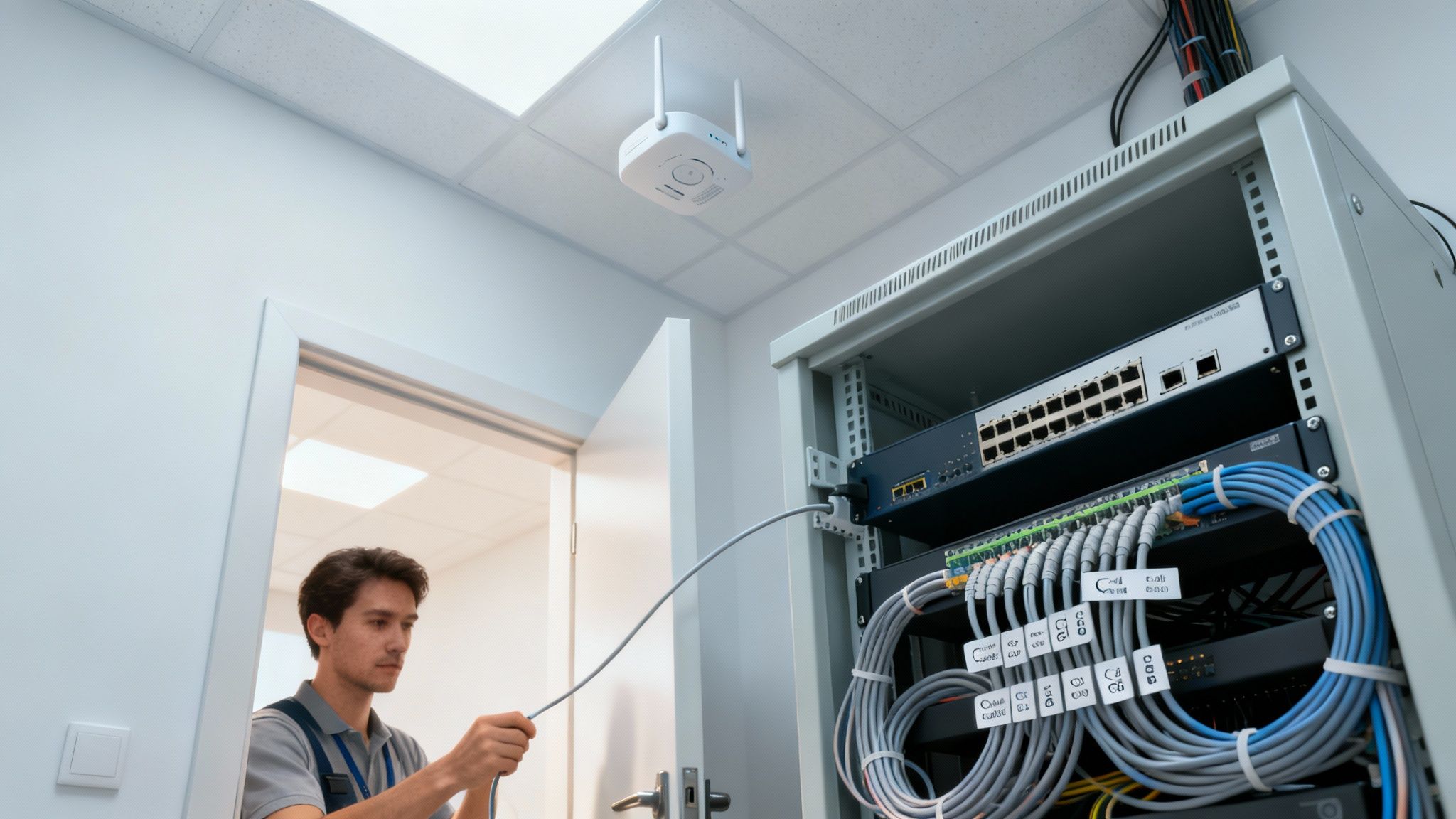
What Is Office Network Installation?
Office network installation is the process of designing, installing, configuring and testing the infrastructure that connects devices within a workplace and provides access to external networks such as the internet.
A typical office network may connect:
- Desktop computers and laptops.
- Network printers and scanners.
- Routers, firewalls and network switches.
- Wireless access points.
- File servers and NAS storage devices.
- IP phones and video conferencing equipment.
- IP CCTV cameras and network video recorders.
- Biometric attendance and other network-enabled devices.
A properly configured network allows authorised employees to access shared resources while keeping sensitive business systems protected.
Benefits of Professional Office Network Installation
1. Reliable Internet and Internal Connectivity
A properly designed network provides suitable connectivity for employees, computers and business equipment. It can reduce avoidable interruptions caused by poor cabling, incorrect configuration and unsuitable equipment.
2. Centralised File and Printer Sharing
Employees can access authorised shared folders, servers, NAS storage and network printers without transferring every file manually between computers.
3. Better Employee Productivity
Reliable connectivity helps employees use accounting software, inventory systems, cloud applications, email and other business tools efficiently.
4. Improved Network Security
Firewall rules, user permissions, secure Wi-Fi and network segmentation can help protect company devices and information from unauthorised access.
5. Easy Business Expansion
A scalable network design makes it easier to add new computers, printers, access points, cameras and other devices as the business grows.
6. Easier Maintenance
Organised cabling, labelled network points and documented configurations make troubleshooting and future upgrades easier.
Types of Office Networks
1. Wired LAN Network
A Local Area Network (LAN) connects devices within an office or building through Ethernet cables and network switches. Wired connections are commonly used for desktop computers, servers, printers and other fixed devices.
Benefits include:
- Predictable connectivity for fixed workstations.
- Reduced dependence on wireless signal quality.
- Suitable connections for servers and network storage.
- Better control over physical network connections.
2. Wireless Wi-Fi Network
A wireless network connects laptops, smartphones, tablets and other compatible devices through wireless access points. It provides flexibility for employees who move between work areas.
Wi-Fi installation should consider office layout, walls, interference, device density and required coverage. For larger offices, multiple access points may be needed.
3. Hybrid Network
A hybrid network combines wired Ethernet and wireless connectivity. It is a practical choice for many offices because fixed devices can use Ethernet while mobile devices use Wi-Fi.
Essential Equipment Required for Office Network Installation
| Equipment | Function |
|---|---|
| ISP modem or ONT | Terminates the internet service connection provided by the ISP. |
| Router | Routes traffic between the office network and other networks. |
| Firewall | Applies security rules and controls network traffic. |
| Network switch | Connects multiple wired devices within the LAN. |
| Wireless access point | Provides Wi-Fi connectivity to wireless devices. |
| Cat6 or Cat6A cable | Provides wired Ethernet connections. |
| Patch panel | Organises permanent network cable terminations. |
| Network rack | Houses network switches, patch panels and other equipment. |
| UPS | Provides temporary backup power to connected equipment. |
| Network tester | Checks cable continuity and, with suitable equipment, cable performance. |
1. Router and Firewall Installation
The router connects the office LAN to the internet and routes traffic between networks. A business firewall helps enforce security policies and control which connections are allowed.
Router and firewall configuration may include:
- WAN and LAN configuration.
- ISP connection settings.
- DHCP and IP address management.
- Firewall rules and access restrictions.
- VPN configuration for authorised remote access.
- Guest network separation.
- Bandwidth management where supported.
- Monitoring and configuration backups.
For business use, select equipment based on the number of users, internet speed, expected traffic, security requirements and future expansion plans.
2. Network Switch Installation
A network switch connects computers, printers, servers and other wired devices within an office LAN.
There are three common types:
- Unmanaged switch: Suitable for simple networks that do not require advanced configuration.
- Managed switch: Provides VLANs, monitoring, traffic management and other administration features.
- PoE switch: Supplies power and data to compatible devices such as wireless access points and IP cameras through Ethernet cables.
Switch selection should consider the number of required ports, uplink speed, PoE power budget, management features and expected network growth.
3. Structured Cabling and Ethernet Installation
Structured cabling is the organised physical infrastructure that connects workstations and network devices to a central network rack or distribution point.
A structured cabling system may include:
- Cat5e, Cat6 or Cat6A Ethernet cables.
- RJ45 connectors and keystone jacks.
- Network wall outlets.
- Patch panels and patch cords.
- Cable trays, conduits and trunking.
- Network racks and cable managers.
- Fibre-optic links where required.

Cat5e vs Cat6 vs Cat6A
| Cable Category | General Capability | Typical Use |
|---|---|---|
| Cat5e | Supports Gigabit Ethernet up to 100 metres under compliant channel conditions. | Existing basic office networks. |
| Cat6 | Supports Gigabit Ethernet up to 100 metres and 10GbE over shorter distances, typically up to 55 metres under specified conditions. | Many new office installations. |
| Cat6A | Supports 10GbE up to 100 metres under compliant installation conditions. | Higher bandwidth and longer-term infrastructure requirements. |
Cat6 is a common practical choice for new office installations. Cat6A may be suitable when 10 Gigabit Ethernet over the full channel distance is required. Always consider cable quality, installation conditions, equipment compatibility and applicable standards.
4. Wi-Fi Access Point Installation
Wireless access points provide Wi-Fi coverage to laptops, smartphones, tablets and other wireless devices. In larger offices, dedicated access points are often more suitable than relying on a single consumer router.
Before installing access points, consider:
- Office floor plan and room arrangement.
- Wall and ceiling construction.
- Number of connected users and devices.
- Wireless interference from neighbouring networks.
- Required coverage in meeting rooms and work areas.
- Ethernet backhaul and PoE availability.
Access point quantity should be determined through planning and, where needed, a site survey. A fixed access point count based only on square footage can produce poor results.

Step-by-Step Office Network Installation Process
Step 1: Understand Business Requirements
Start by identifying the number of employees, computers and devices that require connectivity.
Prepare a list of:
- Desktop computers and laptops.
- Network printers and scanners.
- Servers and NAS devices.
- Wireless access points.
- IP cameras and NVRs.
- IP phones and conference room equipment.
- Guest Wi-Fi requirements.
Step 2: Conduct an Office Site Survey
Inspect the office before purchasing equipment or installing cables. Review the floor plan, workstation locations, ceiling access, cable routes, equipment room and power availability.
Identify the best location for the network rack, router, switch and UPS. For Wi-Fi, review the areas where users need coverage and check for potential sources of interference.
Step 3: Prepare the Network Layout
Create a basic network diagram showing how the internet connection, router, firewall, switches, access points and end devices will connect.
Also plan the number of network outlets, cable routes, switch ports, IP address ranges and any required network separation.
Step 4: Select Suitable Networking Equipment
Choose equipment based on current and future requirements. Consider switch port count, PoE budget, router throughput, firewall features, wireless standards and management options.
Step 5: Install Network Cabling
Run Ethernet cables from the central network rack to each workstation and device location. Use suitable cable trays, conduits and trunking to protect and organise the installation.
Important installation practices include:
- Use suitable cable categories and quality components.
- Keep data cabling appropriately separated from electrical wiring.
- Avoid crushing, sharp bends and excessive pulling tension.
- Terminate cables using the correct wiring scheme.
- Label both ends of every cable.
- Test completed cable runs with suitable test equipment.
Step 6: Install the Network Rack and Equipment
Install the patch panel, network switch, router, firewall and UPS in a suitable rack or cabinet. Ensure the equipment has appropriate ventilation and is protected from accidental damage and unauthorised access.
Use cable managers and patch cords of suitable lengths to keep the rack organised.
Step 7: Configure IP Addresses and Network Settings
Configure the router or designated DHCP server to assign IP addresses to connected devices. Plan the network range to avoid conflicts with existing networks and VPN connections.
For example, a small office might use the following private network:
Network: 192.168.10.0/24
Router / Gateway: 192.168.10.1
DHCP range: 192.168.10.100 – 192.168.10.200
Printer reservation: 192.168.10.20
NAS reservation: 192.168.10.30
This is an example only. The actual addressing plan should be designed around the office's requirements. DHCP reservations can help keep important devices on consistent IP addresses without manually configuring every device.
Step 8: Configure Wi-Fi and Shared Resources
Configure wireless network names, strong passwords and appropriate security settings. Create a separate guest network if visitors need internet access.
Connect and test shared printers, file servers, NAS devices and other business resources. Assign permissions so employees can access only the information they need.
Step 9: Apply Network Security Settings
Change default passwords, update firmware, configure firewall rules and restrict administrative access. Where supported, separate guest, staff, CCTV and other device networks.
Step 10: Test and Document the Network
Test every network point, device connection, internet link and required application. Check Wi-Fi coverage and verify that authorised users can access shared resources.
At handover, provide a network diagram, port labels, IP address information, equipment details and configuration backups through a secure process.
Office Network Layout Diagram
This simplified diagram illustrates a typical small business network installation.
The actual design may include multiple switches, VLANs, additional access points, fibre links, separate server networks and redundant internet connections depending on business requirements.
Network Security Best Practices for Offices
Office networks often carry confidential business information, customer records and financial data. Security should be included during the design and installation stages.
- Change default administrator usernames and passwords.
- Use strong, unique credentials for network devices.
- Keep router, firewall and access point firmware updated.
- Use a properly configured firewall.
- Separate guest Wi-Fi from internal business systems.
- Use VLANs or other network segmentation where appropriate.
- Restrict access to network administration interfaces.
- Use secure VPN access for authorised remote users.
- Disable unused services and remote administration features.
- Maintain backups of important business data and network configurations.
- Monitor devices and review unusual network activity.
Network segmentation can help limit unnecessary communication between different groups of devices. For additional guidance, read the CISA guide to network security through segmentation.
Common Office Network Problems and Solutions
| Network Problem | Possible Cause | Suggested Action |
|---|---|---|
| Slow internet | ISP issue, congestion or overloaded equipment | Test wired internet speed and review network usage. |
| Frequent disconnections | Faulty cables, unstable power or hardware problems | Inspect cables, switch ports and equipment power. |
| Wi-Fi dead zones | Poor access point placement or signal obstruction | Conduct a Wi-Fi survey and review access point locations. |
| Printer not connecting | Incorrect IP address or network settings | Check printer configuration and network connectivity. |
| File sharing not working | Permissions, firewall rules or name-resolution issues | Review user access, device settings and network policies. |
| Duplicate IP address | Overlapping static and DHCP address assignments | Review the DHCP range and IP reservations. |
| Network devices overheating | Poor ventilation or unsuitable equipment placement | Improve airflow and check equipment operating conditions. |
How Much Does Office Network Installation Cost?
The cost of office network installation depends on the size of the premises, number of network points, cable requirements, equipment specifications and installation complexity.
Major cost factors include:
- Number of computers and network points.
- Cat6 or Cat6A cable selection.
- Router and firewall specifications.
- Number and type of network switches.
- Managed switching and PoE requirements.
- Patch panels, racks and cable management.
- Wi-Fi access points and coverage requirements.
- Conduits, cable trays and installation labour.
- UPS and backup power requirements.
- Testing, configuration and documentation.
Office Network Maintenance and AMC
Network installation is only the first step. Regular maintenance helps keep equipment in good condition and identify problems before they cause major interruptions.
A network maintenance plan may include:
- Checking router, firewall and switch health.
- Inspecting network rack ventilation and cable organisation.
- Checking access point connectivity and coverage.
- Reviewing firmware and security updates.
- Backing up network configurations.
- Checking UPS operation and battery condition.
- Reviewing network performance and recurring faults.
- Updating device and port documentation.
An Annual Maintenance Contract (AMC) can provide scheduled inspections and technical support under an agreed service scope. The agreement should clearly define visit frequency, response times, included work and exclusions.
Why Choose Professional Office Network Installation?
Improper cabling, incorrect IP configuration, weak security settings and poor access point placement can create avoidable problems. Professional planning helps build an organised network that is easier to manage and expand.
A professional installation can include:
- Network requirement assessment and site survey.
- Office LAN and Wi-Fi design.
- Router, firewall and switch configuration.
- Structured cabling and cable management.
- Network rack and patch panel installation.
- IP addressing and DHCP configuration.
- Network security and guest access setup.
- Testing, troubleshooting and documentation.
- Ongoing IT and networking maintenance.
Office Network Installation Services by Virnobyte Private Limited
Virnobyte Private Limited provides computer networking and IT infrastructure solutions for offices, shops, commercial premises, small businesses and other organisations.
We support businesses with network installation, upgrades, troubleshooting and maintenance according to their technical and operational requirements.
Our Networking Services
- Office LAN network installation.
- Wi-Fi installation and access point configuration.
- Router and firewall setup.
- Network switch installation and configuration.
- Cat5e, Cat6 and Cat6A structured cabling solutions.
- Network rack and patch panel installation.
- Network troubleshooting and repair.
- Office network expansion and upgrades.
- Networking AMC and IT support.
- Connectivity support for compatible CCTV and network devices.
Our Service Coverage
Virnobyte has its head office in Pune, Maharashtra, and provides services across Maharashtra. We also have a strong presence in Karnataka and Goa, and serve customers across Pan India.
On-site installation and support depend on the project location, scope and feasibility. Remote assistance and other service arrangements can be discussed according to customer requirements.
Planning an Office Network Installation?
Setting up a new office, upgrading your existing LAN or improving Wi-Fi connectivity? Contact Virnobyte Private Limited to discuss your networking and IT infrastructure requirements.
Virnobyte Private Limited
Technology • Innovation • Trust
Head Office:
Sadichha Complex, Sawtamali Temple Road, Jadhavwadi, Chikhali, Pune – 411062, Maharashtra, India
Phone: 8669883332
Email: info@virnobyte.com
Website: www.virnobyte.com
Frequently Asked Questions (FAQs)
1. What is included in office network installation?
Office network installation can include LAN design, router and switch setup, structured cabling, Wi-Fi access points, IP configuration, network security, testing and documentation.
2. Which network is best for an office: wired or wireless?
A hybrid network is suitable for many offices. Wired Ethernet is useful for fixed computers, servers and printers, while Wi-Fi supports mobile devices and flexible work areas.
3. How many network switches does an office need?
The number depends on the total wired devices, required ports, PoE devices, uplink requirements and future expansion. A site assessment can help determine the correct switch capacity.
4. Which Ethernet cable is suitable for office installation?
Cat6 is a common choice for new office networks. Cat6A may be suitable where higher bandwidth requirements or 10GbE over longer channel distances are needed.
5. How many Wi-Fi access points are required?
There is no fixed number for every office. Building layout, walls, interference, connected users and coverage requirements determine the appropriate quantity and placement.
6. Can CCTV cameras and office computers use the same network?
Compatible IP cameras can connect to the same physical network infrastructure. However, CCTV devices should be appropriately secured and placed on a separate VLAN or network segment where practical.
7. Why is a network rack required?
A network rack provides an organised location for switches, patch panels, routers and other equipment. It improves cable management, accessibility and maintenance.
8. Does Virnobyte provide office network installation outside Pune?
Virnobyte has its head office in Pune, provides services across Maharashtra, has a strong presence in Karnataka and Goa, and serves customers across Pan India. On-site service availability depends on location and project feasibility.
Useful External Resources
- Cisco: How to Set Up a Small Business Network – Understand routers, switches and office network planning.
- Microsoft Learn: Set Up Your Small Business Network – Guidance on wired, wireless and hybrid network installation.
- Telecommunication Engineering Centre: Structured LAN Cabling – Reference material on structured cabling components and requirements.
- TIA-568 Commercial Building Cabling Overview – Background on commercial building telecommunications cabling.
- CISA: Network Security Through Segmentation – Learn how network segmentation can improve security.
- CPWD: Data Network Infrastructure Reference – Information on network racks, patch panels and cable management.
Disclaimer: This article provides general educational information. Actual network design and installation should be based on site conditions, equipment specifications, applicable standards and business requirements.